Microsoft Clarity
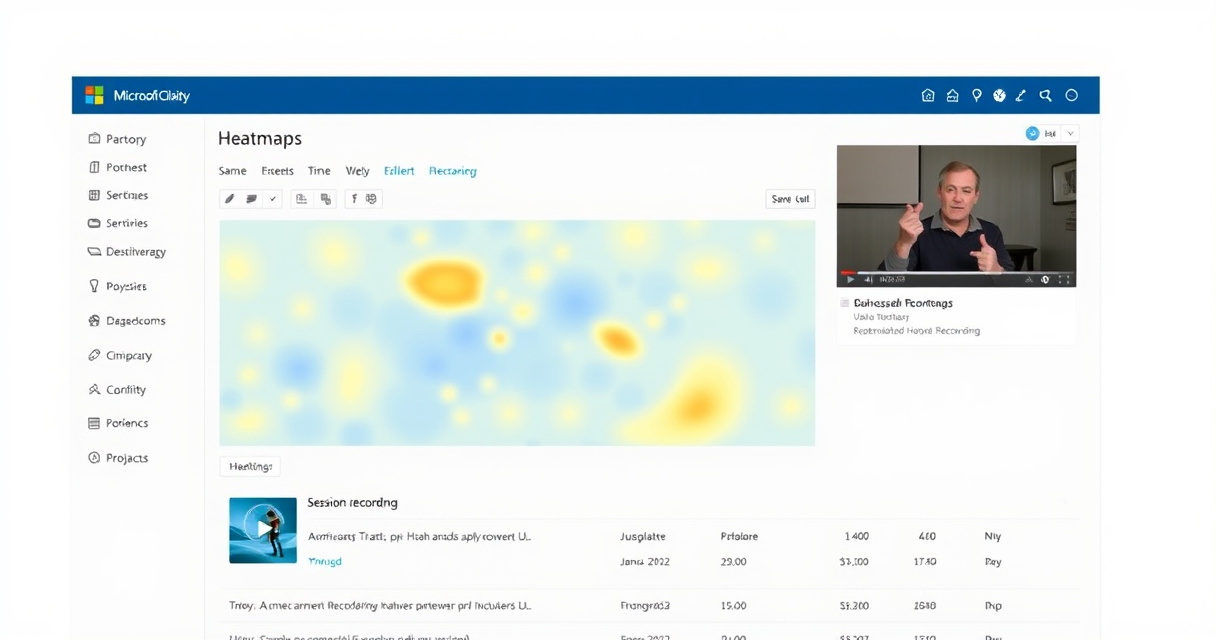
Microsoft Clarity is a free behavioral analytics tool from Microsoft that shows how users interact with a website or app through session recordings, heatmaps, and UX insights.
Key takeaways
- Microsoft Clarity is free forever with unlimited session recordings and heatmaps.
- It helps identify UX friction that standard analytics miss.
- Use it alongside Google Analytics for a complete view of user behavior.
- Focus on key pages and segments to avoid noisy data.
- Always set up privacy and consent before deploying session tracking.
For SEO practitioners, Clarity helps identify friction that standard traffic metrics miss, such as confusing layouts, ignored calls to action, and drop-off points in user journeys.
What People Use Microsoft Clarity For
- Identify UX friction – Spot confusing layouts, broken elements, or ignored CTAs that hurt conversions.
- Analyze user behavior – Use session recordings to see exactly how visitors navigate your site.
- Optimize page experience – Heatmaps show where users click, scroll, and hover, helping you improve layout and content placement.
- Support CRO efforts – Combine behavioral data with conversion goals to test and refine pages.
- Integrate with GA4 – Pair Clarity with Google Analytics for a fuller picture of user behavior.
Quick Start: How to Set Up Microsoft Clarity
- Sign up – Go to Microsoft Clarity and create a free account.
- Add your site – Enter your website URL and name your project.
- Install the tracking code – Copy the Clarity script and paste it into your site’s
<head>tag (or use Google Tag Manager). - Verify installation – Clarity will confirm the code is working within minutes.
- Start analyzing – View session recordings, heatmaps, and dashboards in your Clarity dashboard.
When Not to Start with Microsoft Clarity
- If you need detailed numerical reports – Clarity is not a replacement for Google Analytics; it focuses on behavior visualization.
- If you lack privacy/consent setup – Session recording requires proper consent management to comply with regulations like GDPR.
- If you have a very small site – The insights may be limited with low traffic volumes.
- If you need advanced A/B testing – Clarity does not include built-in A/B testing; use dedicated tools like Google Optimize.
Alternatives to Microsoft Clarity
| Tool | Key Difference |
|---|---|
| Hotjar | Paid plans with more advanced heatmaps and feedback widgets |
| Google Analytics | Focuses on numerical reporting, not behavioral visualization |
| Crazy Egg | Paid tool with heatmaps and A/B testing |
| FullStory | Enterprise-grade session replay with AI-powered insights |
Next step
FAQ
Is Microsoft Clarity free?
Yes, Microsoft Clarity is free forever with no usage limits.
How does Microsoft Clarity differ from Google Analytics?
Clarity focuses on behavioral visualization (recordings, heatmaps) while Google Analytics focuses on numerical reporting.
Can I use Microsoft Clarity with Google Analytics?
Yes, they complement each other. You can integrate Clarity with GA4 for combined insights.
What data does Microsoft Clarity collect?
Clicks, scrolls, session recordings, and friction signals. It does not collect personally identifiable information by default.
Related topics
Sources
- Microsoft Clarity Documentation — Primary Microsoft documentation for product overview and official positioning.
- Clarity Overview — Official explanation of what Clarity is and that it is free forever.
- Microsoft Marketplace: Clarity — Official product listing summarizing key features such as heatmaps and session recordings.
- Microsoft for Startups: Microsoft Clarity benefit — Official Microsoft source for startup eligibility and redemption flow.
Reviewed by Lucía Marín, Founding editor.